

Managing Projects
Create, switch, rename, and remove projects in Studio, and edit the project manifest.
The workspace manager
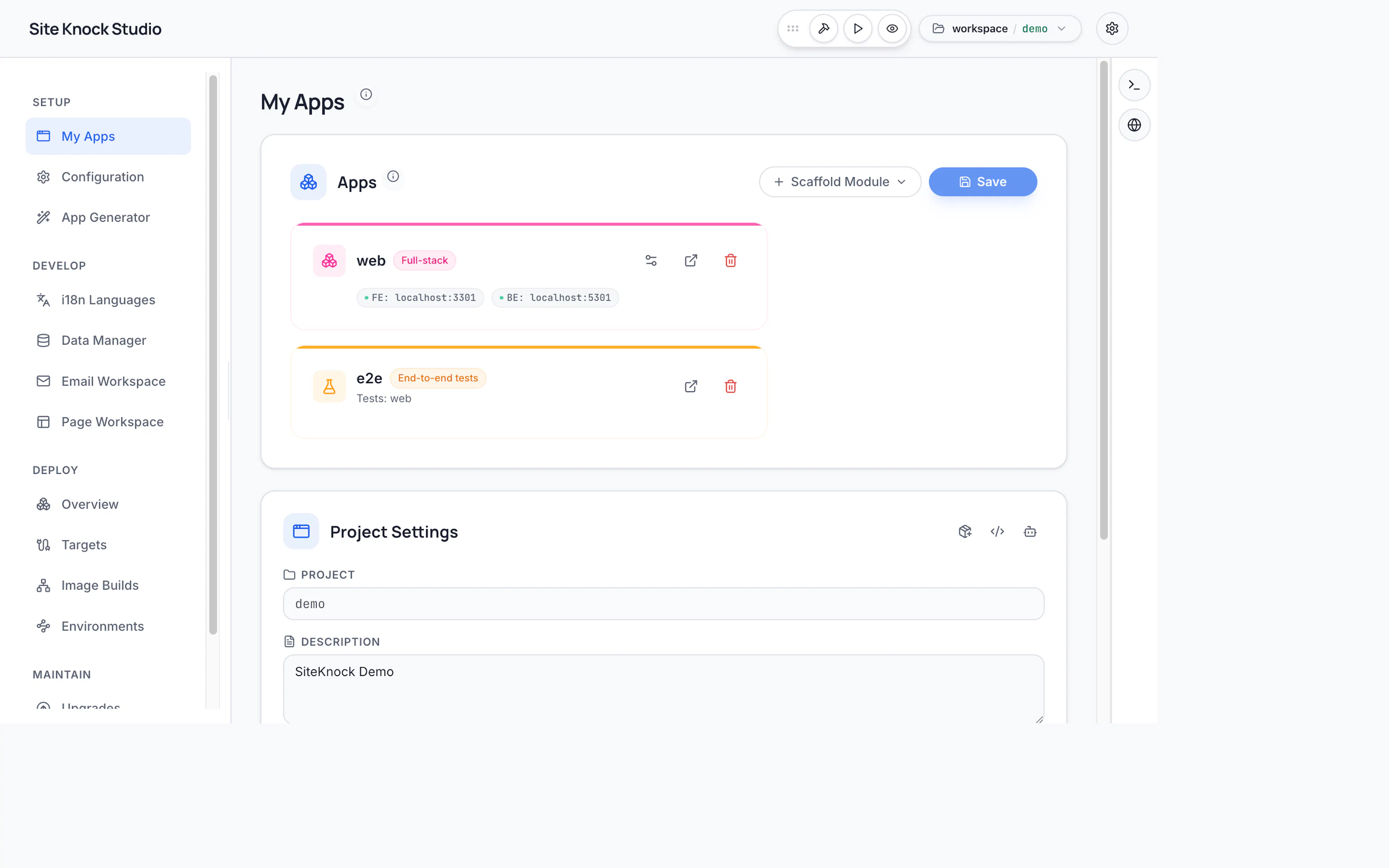
Studio's workspace manager lists every project in your workspace. From here you can create new projects, switch the active project, install dependencies for a fresh project, and remove projects you no longer need.
Creating a project
Use the workspace manager's Create project action, give it a name, and Studio scaffolds a full SiteKnock monorepo and registers it in sk-cli.json. This is the visual equivalent of sk-cli create.
Switching projects
- Select a project from the workspace manager, or
- Append
?project=<folder>to the Studio URL.
Studio resolves the default project from sk-cli.json and falls back to the first valid folder.
Installing dependencies
A freshly scaffolded project needs its dependencies installed before it can run. Studio offers a one-click Install dependencies action for fresh projects, equivalent to pnpm install.
Editing the project manifest
Studio includes a raw JSONC editor for config/sk-config.jsonc — the single source of truth for your project's apps, features, branding, and SEO. Most settings have dedicated UI (see Configuring Features), but the raw editor is available for advanced cases.
Whenever config changes — whether through Studio's UI or the raw editor — Studio regenerates the affected apps for you. From the CLI, the equivalent is pnpm sk:generate.
Downloading AI agent guides
From a project's page you can download AI agent guides — a config-driven Project Knowledge Base that gives Copilot, Claude, Cursor, and other agents full context on your project (enabled apps, ports, features, languages, database provider). See Knowledge Base Dump for details.